Appearance
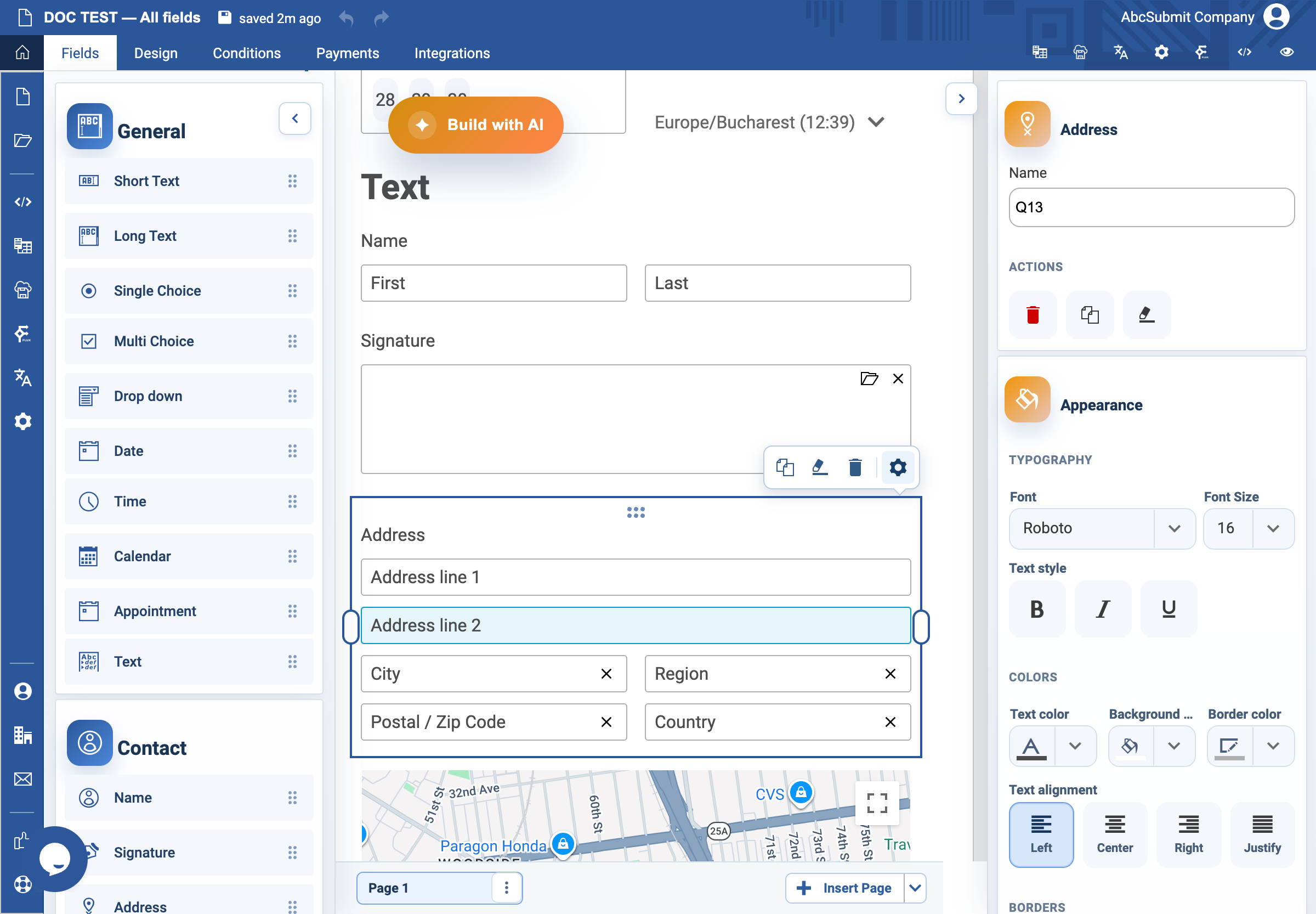
Address field
Use Address when you need a structured postal address.
Example: delivery address in Romania
- Open Fields > Contact and select Address.
- Select the field and open Edit.
- Set the label to
Delivery addressand Name todelivery_address. - In Address settings, select Universal for an international address, or a country-specific style for United States, Canada, Australia, or United Kingdom.
- With Universal style, set Default country to Romania if most respondents are in Romania.
- Use Allowed countries only when the service genuinely cannot accept other countries.
- Enable Auto complete only after a Google Maps API key is configured in the account preferences.
- Turn on Required Field only for information necessary to deliver or process the request.
- Preview with an address in an allowed country and one outside the allowed list, if restrictions are enabled.
Expected result
The form shows the appropriate address structure and country options. Treat every address as personal data and collect only what is needed.
Google Maps/API prerequisite
Auto complete uses Google Maps Places data and requires the account’s own Google Maps API key in custom preferences. The key must be valid for the live site origin and have the required API/billing restrictions. If the key is missing or rejected, respondents can still use the ordinary address inputs, but autocomplete/search will not be reliable. Review Google’s data-use terms and avoid enabling it for fields that do not need lookup assistance.