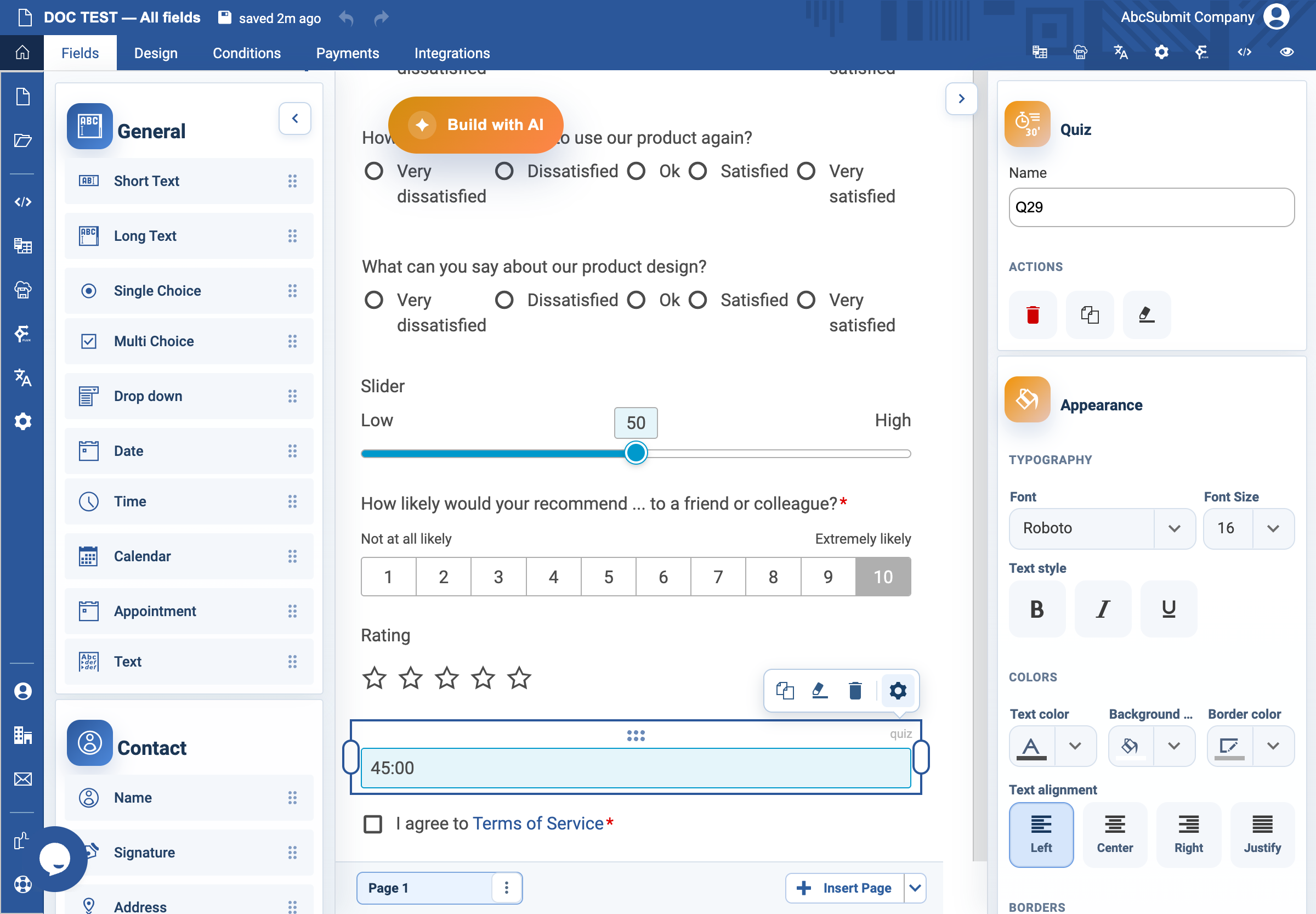
Appearance
Quiz field
Use Quiz to score answers in existing Single Choice, Multi Choice, and Drop down questions.
Example: short knowledge check
- Add and complete the scored choice questions first, including their answer choices.
- Select Fields > Survey > Quiz, then open Edit.
- Set Completion time and its unit when the quiz is timed. Explain the limit before the participant begins.
- Turn on Auto submit form only when submission at time expiry is intended and clearly disclosed.
- Turn on Randomize choices to reduce answer-position bias, then confirm each randomized answer still reads correctly.
- Choose the Partial results behavior for questions with more than one correct answer.
- Open Setup quiz points, mark correct answers, assign points, and set the passing score.
- Preview three paths: a passing score, a failing score, and a partially correct multi-choice response.
Expected result
The field scores the configured questions according to the visible rules. The pass score must not exceed the total available points.